TodoQ
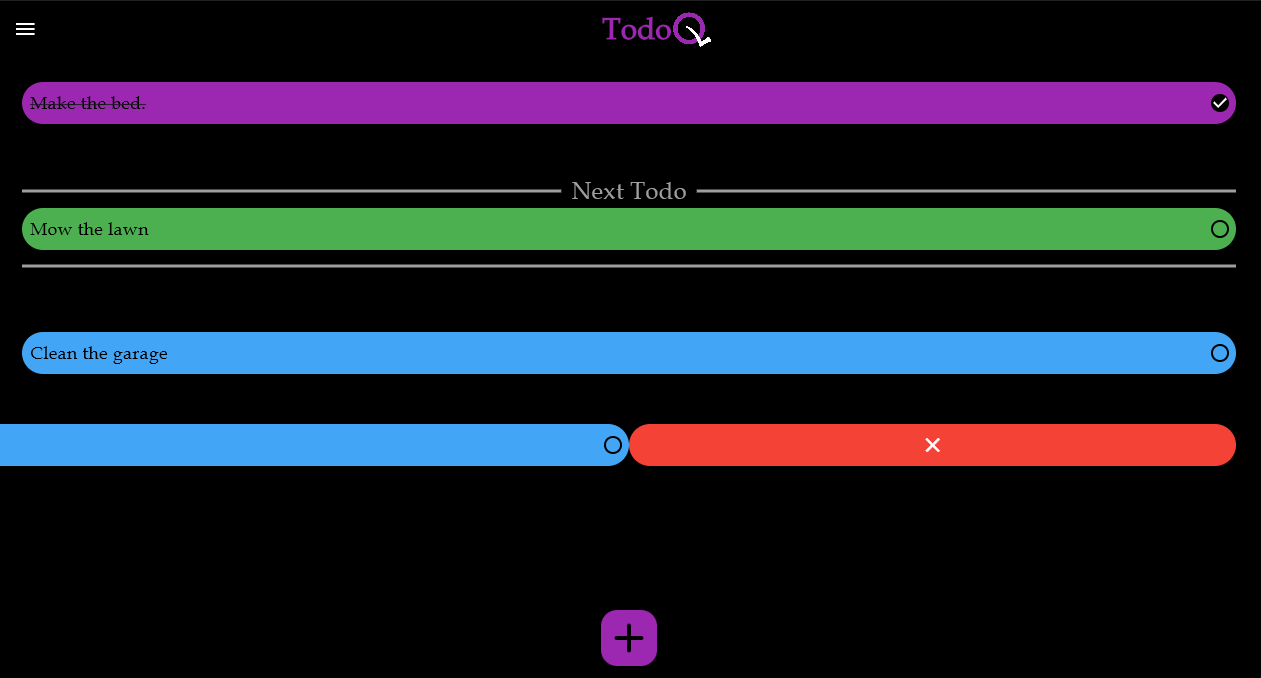
Creating TodoQ, a Flutter and Dart-based application, was not just a project to learn the technologies but also a testament to my passion for practical problem-solving through software development. TodoQ introduces a unique twist to the conventional to-do list concept by implementing a FIFO (First In, First Out) queue system. This approach ensures that tasks are managed in the order they are added, with the topmost task highlighted as the next item to complete, promoting efficient task prioritization.
The app offers a seamless user experience with intuitive features such as the ability to add, complete, edit, drag-and-drop, and delete tasks effortlessly. Additionally, TodoQ supports multiple queues. The queue management drawer enables users to easily switch between queues, rearrange, edit, and delete, enhancing productivity and organization.
By developing TodoQ, I not only developed my skills in Flutter and Dart but also demonstrated my ability to conceptualize and implement innovative solutions to address everyday challenges. This project reflects my commitment to delivering user-centric applications that prioritize functionality, usability, and intuitive design. As I continue to grow as a software developer, I look forward to leveraging my experiences with projects like TodoQ to contribute meaningfully to future endeavors.
TodoQ is available to download on Android for Closed Testing.
If you want to be added to the list of testers please contact me at: jack8jones@protonmail.com
Tap the menu button located in the top-left corner to access the queue menu. Here, you can view and switch between different queues. To
To add a new task or queue, tap the "+" button or the designated area within the app. Enter the task name and press "Add" to append it to the bottom of the queue.
As you progress through your tasks, mark them as completed by checking the box next to each task. The app will automatically highlight the next task to complete, helping you stay focused and organized.
If you need to modify a task or queue, slide the task or queue to the right to reveal the edit button. Tap on it, make your changes, and then press "Save" to update it.
Swipe a task to the left to uncover the delete button. Tap on it to remove the task from the queue. To delete the queue the process will be the same however a confirmation window will appear to confirm that you want to delete the queue since all tasks within the queue will be deleted.
To change the order of tasks or queues, press and hold on a task or queue until it becomes draggable. Then, drag it up or down the queue to the desired position.